
Family devices
Give Family Devices a Reliable Update Window
A small arrangement for power, time and restarts can keep routine updates from becoming an endless reminder.
A second network name is easy to print on a card. The useful part is deciding what someone connected to it should be able to reach.
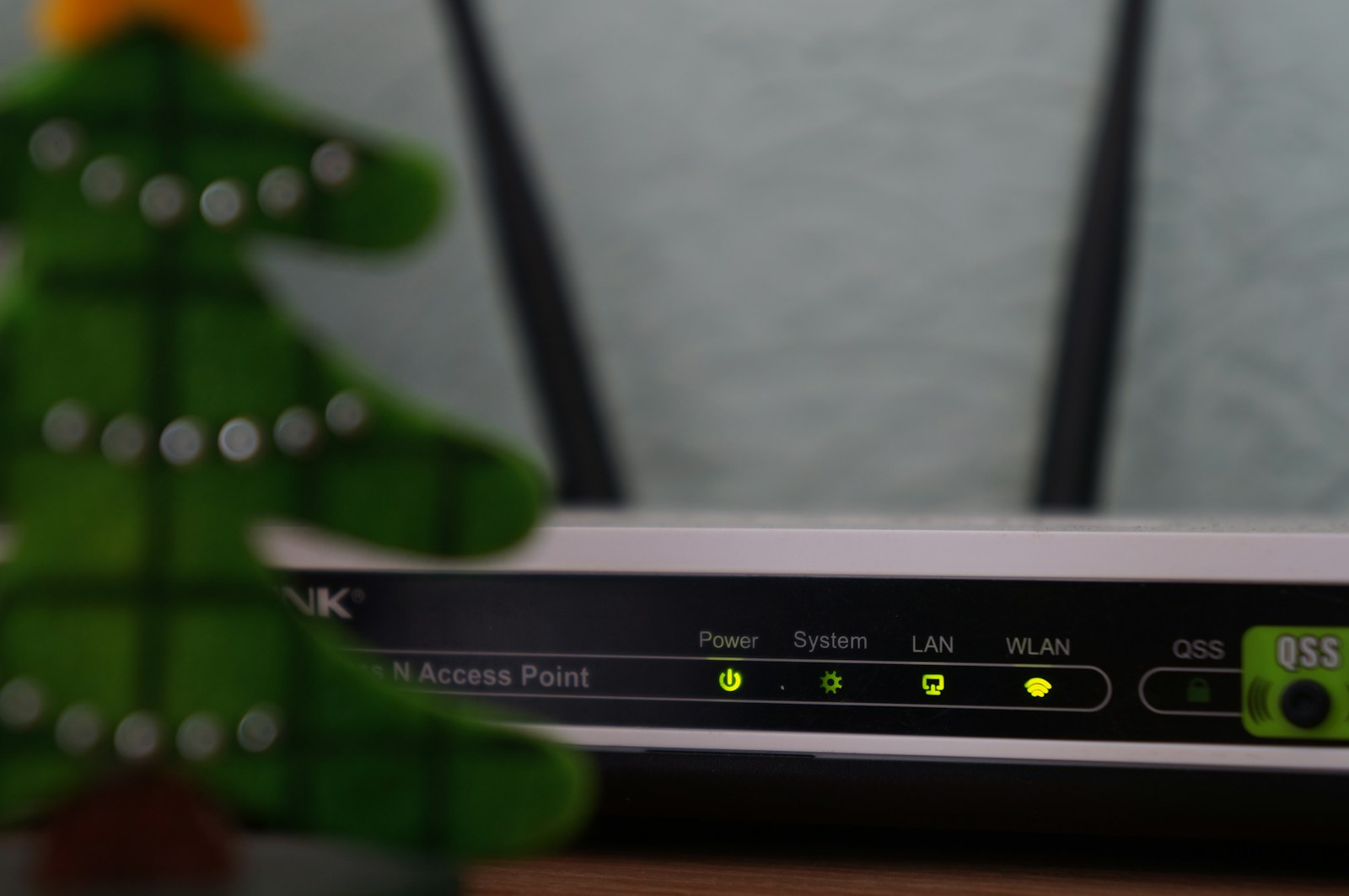
A friend arrives for dinner and asks for Wi-Fi. You want to hand over a password, not spend the next half hour reorganizing the router. That is exactly why I would set up guest access before the visit. A separate connection can let people check messages and browse the web while keeping household resources, such as shared folders, out of reach. The important word is can: the name Guest is not evidence of what a particular router allows.
Consider a household with a work laptop, a wireless printer and a television. A visitor needs the internet but may later ask to print a ticket or show photographs on the TV. Those are different requests. This guide follows that distinction through setup, a small practical check and a decision about exceptions. It uses the FTC's home-network advice and ASUS documentation as starting points; the settings available on your own equipment take precedence over any generic recipe.
Start with a simple description of the visit. Checking a train timetable requires an internet connection. Opening a document stored on your home computer requires access to something inside the house. Casting a video may require local discovery between devices. I would write down which of these you want to allow before touching settings. Otherwise, the first thing that fails tends to become the reason for turning off a useful restriction without understanding its purpose.
There are also two kinds of password to keep separate. The Wi-Fi password connects a device; the router administrator password changes the equipment's settings. Give visitors the guest Wi-Fi details, not the administrator credentials. The FTC recommends current wireless protection such as WPA2-Personal or WPA3-Personal and keeping router software updated. These are useful foundations, but neither encryption nor a different network name proves that local resources have been isolated.
The boundary has a limited job. A visitor could still receive a scam message while connected to guest Wi-Fi, and a household device still needs its own updates and access controls. Think of guest access as a way to avoid handing out the main network password and to restrict local connections where your equipment supports that restriction. It is one practical arrangement, not a promise that every connected device or website is safe.
Find the model name and current operating mode in the official router app or documentation. In the ASUS interface described in its guest-network guide, Access Intranet controls whether guests may reach private-network services. Turning that access off is relevant to the boundary we want. ASUS also says this control is available in wireless-router mode, while Access Point mode is different. A screenshot from another model may therefore show a switch you do not have.
Mesh systems introduce another question: where will the guest connection work? Check the manufacturer's instructions for the main router and any additional nodes. Do not assume that a setting on one box has the same effect in every room. If the documentation does not describe the behavior clearly, ask manufacturer or provider support about your model and configuration. A precise question is whether a guest can reach devices on the primary network, not simply whether Guest Wi-Fi exists.
If the router belongs to a landlord, workplace or internet provider, establish who can change it. You may be able to configure a guest connection yourself, or the owner may need to do it. Do not factory-reset shared equipment to obtain access. Before making an authorized change, note the original setting and arrange a time when a brief interruption would be manageable. Avoid experimenting during someone else's work call or an important online appointment.
After choosing a distinct guest name and a strong separate password, connect one of your own spare devices to it. Temporarily turn off that device's mobile data so a working web page cannot be explained by a cellular fallback. Open a familiar site. This checks ordinary internet access from that device at that moment. It says nothing yet about whether the same guest connection can reach your printer, storage or another computer.
Choose a local resource you own and already know how to use, such as a printer or a shared folder containing a harmless test file. Confirm that it works from the usual household connection. Then try the same ordinary action from your guest test device. If you intend isolation, successful access is a reason to revisit the settings. A failed attempt is consistent with that boundary, although it can also have other causes; it is not proof of comprehensive security.
Keep the test small and record the expected result. You are checking the behavior you intend to rely on, not trying to discover every device or run a penetration test. Restore mobile data afterward if the test device needs it. If the guest can browse but cannot reach the chosen local resource, note the model, date and setting used. That gives you a useful comparison if a later update or configuration change behaves differently.
Printing and casting are where a straightforward guest arrangement often needs a second decision. Suppose a visitor wants a boarding pass printed. Giving the entire guest network access to household resources may be a much broader change than that one job needs. It may be simpler for the visitor to send the document through a method you already use and for you to print it from your own device. Avoid exchanging passwords merely to save a few clicks.
For a television or speaker, check whether the product supports a documented guest-sharing method. Some setups deliberately allow particular devices to communicate; others do not. Do not assume there is a safe universal exception hidden in every router menu. If you choose to place a visitor's device on the primary connection, recognize that you are changing the boundary. Trust in the person does not establish the condition of their device or erase the need for that decision.
A lasting exception deserves a lasting explanation. Write down what must communicate, why, and which setting allows it. If the exception is only for an evening, set a reminder to review it afterward. This is particularly helpful when two adults manage the network: one should not have to guess whether an unusual setting is a mistake or a deliberate arrangement. Use the manufacturer's supported controls rather than copying unfamiliar firewall commands from a forum.
Guest Wi-Fi should be checked alongside ordinary household tasks. Make sure a familiar laptop can still browse, a printer still prints from its intended devices, and any household features you actually use still work. You do not need to invent tests for equipment you do not own. If something breaks, compare it with the setting you changed before adjusting unrelated features. The aim is a connection people can live with, not a collection of switches turned on just in case.
There is no universal rule that every household-owned device belongs on the primary connection. Some people intentionally isolate an internet-only appliance or an older device from personal computers. Whether guest Wi-Fi is suitable depends on the device's needs and the router's features. A speaker that needs local control may behave differently from a device that only contacts an online service. Make that a separate planned decision, and test the necessary functions before relying on it.
If performance changes, avoid assuming isolation is the cause. A weak signal, busy connection, update or device problem could produce a similar symptom. Restore the original documented setting if needed and ask the provider or manufacturer for help with the specific behavior. You should not need to redesign address ranges or change advanced routing just to follow a household guide. Leave those controls alone unless the relevant documentation explains why they must change.
A separate password is useful because guest access can change without asking everyone in the household to reconnect. Change it when it has been shared beyond the intended group, when an access arrangement ends, or when you otherwise want to withdraw the old credential. There is no magic rotation interval that makes a network safe. A short visit, a regular babysitter and an extended family stay may reasonably call for different arrangements.
If your router offers a guest-access timer, check what expires and when. A limit might apply to the network rather than to one visitor. If you turn the guest connection off when unused, remember any household devices intentionally assigned to it. A small note listing those devices can prevent an apparent appliance failure next time you disable access. A printed Wi-Fi QR code should be treated like the password it represents and replaced if that password changes.
Finish by logging out of the administrator interface and storing its credentials appropriately. Keep a brief note of the network names, the reason for any exception, and where to find the official instructions, without leaving passwords on public display. The useful result is modest: visitors have a working connection, you understand what it permits, and you have a way to change access later without disrupting unrelated household routines.
Use a different one if you want independent control over guest access. Changing a reused password can require household devices to reconnect as well. A separate guest password also avoids sharing the primary credential with people who only need a temporary connection.
No. Local isolation and website authenticity are different questions. A visitor may still follow a fraudulent link or enter information into an untrustworthy page. Guest settings do not replace sensible account protection or the visitor’s own security habits.
Check the official instructions and available updates for your model, or ask the owner or internet provider. Do not assume that giving a second network a different name creates isolation. If the required feature is absent, discuss a supported alternative before buying or adding equipment.
That may be the intended restriction on local access. Confirm the printer works from the usual household connection, then check your router’s documented guest rules. Decide whether the visitor needs ongoing printer access or whether printing the document yourself is enough.
Change it when you need to withdraw access or no longer know who has it. You can also review it periodically. A calendar alone does not determine the risk, and frequent changes can interrupt devices you deliberately placed on the guest connection. Keep the arrangement understandable.
I would judge a guest network by three questions: can the visitor do what you intended, can they reach anything you meant to keep private, and do normal household tasks still work? The answers should come from your equipment’s instructions and a small practical check. A separate password then lets you manage the arrangement as visitors and needs change.
Have a correction? Contact the editors.
A small arrangement for power, time and restarts can keep routine updates from becoming an endless reminder.
Separate the television, the streaming device and the app accounts so that one changed setting is not mistaken for a complete privacy reset.
Verify what you need on the replacement device before following the old phone’s official sign-out and erase process.