
Family devices
Give Family Devices a Reliable Update Window
A small arrangement for power, time and restarts can keep routine updates from becoming an endless reminder.
Use one feature you actually use as the test. Android’s permission settings let you narrow access without guessing what every app does.
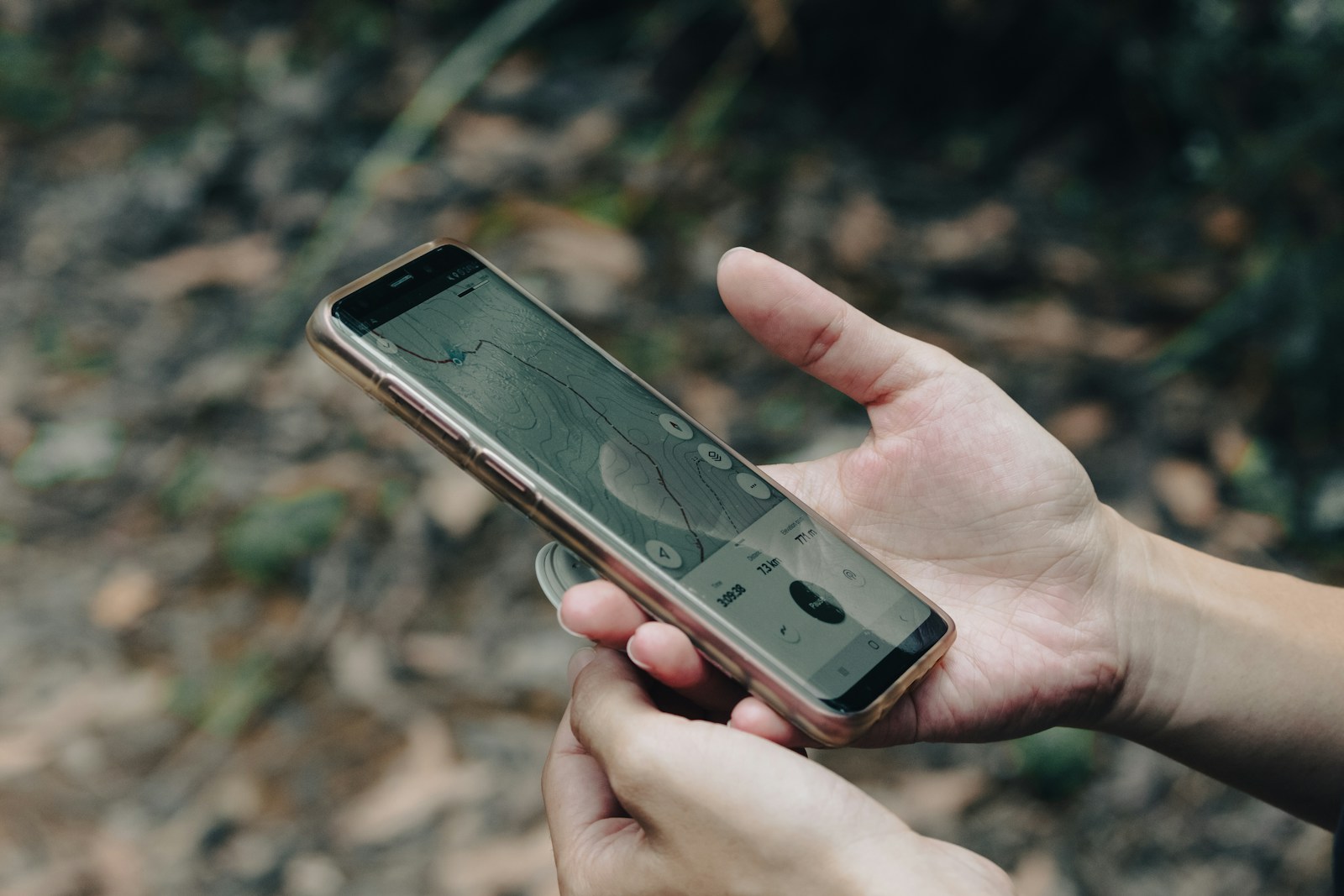
A long list of installed apps makes a privacy review feel harder than it needs to be. I would begin with one app and one job: what do you use it for, and does it still need the access it received? That is a more answerable question than deciding whether every developer deserves unlimited trust. A travel app used for a weekend, for example, deserves another look when that trip is over.
Consider a family member who downloads a parking app for a weekend trip, grants location access and forgets about it afterward. An installed app does not necessarily keep tracking them. What matters is the permission it still has, how the app uses it and whether its features are still needed. Those questions are worth checking without assuming that an unfamiliar setting proves misconduct.
I would review the permission against a specific task, then test what happens when access is narrowed. This guide uses Android's documented choices as examples; menus vary by phone, Android version and permission type. We will follow a hypothetical travel app, compare location with camera, microphone and contacts access, and keep future access separate from information a service may already hold. The aim is a phone that does the jobs you need with fewer unexplained permissions.
Consider a hypothetical family trip to a regional park. A parking or trail app helps locate the entrance and return to the car. While using those features, location access may serve a clear purpose. That does not automatically justify continuous precise access for the whole weekend. Check what the feature actually needs, choose the narrower supported option where it works, and revisit the permission when the trip ends.
Back at home, open that app's permissions rather than guessing from its presence on the screen. If location is allowed all the time, ask why that is still useful. If access is only allowed while the app is in use, the situation is different. Battery drain or background data use alone would not tell you exactly which information was collected. Read the actual setting and, where your phone offers one, its recent permission activity view before drawing conclusions.
The timing question I use is straightforward: does this feature need my location now, or did I only need it during the trip? A parked-car reminder, live navigation and manually searching a street are different jobs. Choose a supported setting that suits the job you still use. If the app has no remaining purpose, uninstalling it may be simpler than maintaining an exception you will forget. Keep any receipt or booking information you still need first.
A common point of confusion during digital cleanups is believing that changing a setting on your mobile device solves every privacy concern associated with a company. When you alter an app's permissions within your phone settings—restricting location from all-the-time to while-in-use, or turning it off entirely—you are changing what the operating system permits that app to see moving forward. According to Android documentation, settings can be adjusted by app or by permission type, with choices varying across manufacturers and software versions. However, this adjustment does not automatically delete previously stored service data.
Return to the hypothetical parking app. If the service collected and retained earlier location information, changing the phone’s permission does not itself erase that information. Whether records exist, how long they remain, and which deletion choices apply depend on the service. Check its account controls and policy separately. Avoid assuming either that a permission switch removes every past record or that every app has stored years of location history.
Handle the two questions separately. First, restrict the permission you no longer need. Second, decide whether you still want the service account and any history it holds. Read its account controls or contact its support team about deletion and retention. Not every service has the same dashboard or legal obligations. Removing one phone permission also does not stop every possible collection method, such as information you deliberately enter into a web form or an approximate location inferred from a connection.
Changing many settings at once makes it hard to understand a failure. If you deny camera access to a school messaging app and location access to a delivery app together, two different features may stop working for different reasons. I would start with one app and record the original choice. A small change that you understand is easier to keep than a broad cleanup everyone later reverses because ordinary tasks have become frustrating.
Suppose you change the parking app from all-the-time location to an option that permits access while using it, where available. Open the app and try the feature you actually need. Can you select a parking area manually, view your receipt or find a nearby meter? If precise location is optional, try approximate location and see whether it is sufficient. Read a failure message rather than assuming that every request must be accepted to make the app work.
If a necessary feature fails, check the developer's explanation and your phone's documentation. You can restore an appropriate permission, use a narrower feature or choose another way to complete the task. A demand for broader access is a reason to weigh the tradeoff, not proof of malicious intent. Keep your test limited to an ordinary, nonurgent task; do not discover during a journey that you disabled the navigation or communication feature someone was relying on.
Apply the same reasoning to camera, microphone and contacts access. A video call has an understandable use for the camera and microphone while the call is happening. Sharing a contact card is a different activity from allowing an app to read an address book. The permission describes a capability, not a complete account of what the app actually did. Ask which feature needs that capability and whether you intend to use it.
Suppose a photo editor asks for contacts access when you choose a sharing feature. You may prefer to export the picture and share it through an app you already use. That gives you a practical alternative without needing to guess why the developer requested access. Conversely, refusing microphone access to a voice-recording feature may understandably stop recording. A useful review considers both the information involved and the feature you would give up.
A permission request is a reason to ask what feature needs it; it is not proof that the developer has used the data or acted maliciously. A game might offer a microphone-based feature you never use, for instance. You can decline access that has no useful job for you without making an unsupported claim about the company. Compare the requested capability with the feature you intend to use, and test the narrower choice.
A universal deny-everything list ignores differences between households. One person uses a map only to browse places; another depends on navigation during a trip. A family may intentionally share location during a journey, while another household does not want that feature. Ask the device owner what they use before changing settings. Permission choices should be made with their knowledge, particularly where a change affects how other people contact them or expect a feature to work.
Treat emergency and safety features with extra care. Before changing a permission they may depend on, read the official device or app instructions and discuss the change with the person using the phone. Do not assume that an ordinary app toggle controls every system emergency function. Equally, do not promise that keeping location on guarantees someone can be found. A practical review identifies the specific feature and its requirements instead of treating all location access as one switch.
For a weather app, for example, see whether selecting a town manually does the job. For a journey-sharing feature, check the supported access level and confirm the arrangement with the people involved. For an app nobody uses, consider removal. These are three different decisions. Writing a brief reason for an exception helps the next person understand it and reduces the temptation to reset everything because the list looks untidy.
A useful review can happen after a trip, after switching phones or when an app requests a new permission. You can also choose a periodic reminder that fits your household. The schedule is an organizational choice, not a security guarantee. Start with apps you no longer recognize or use; that is often more manageable than opening every setting on the phone in one sitting. Leave time to test a change before moving on.
During these periodic reviews, keep a simple household note of intentional exceptions. If a specific family member needs precise location sharing enabled for school transit tracking, or if a specific travel app requires temporary location access for an upcoming vacation, write down why that access exists. When the next review comes around, you will not have to guess whether an unusual permission was a deliberate choice or a forgotten oversight. Context transforms a confusing list of technical settings into a clear record of household decisions.
Finish by checking that the owner can still complete the intended task and knows how to revisit the setting. Keep the note short: app, permission, reason and any feature to test next time. Do not record other people's private location history as part of a household checklist. The useful outcome is a smaller set of understood choices, with the phone owner retaining control over what is shared and when.
Android version, manufacturer modifications, and the specific permission type can all affect available options. Use the closest matching settings on your screen and consult your device manufacturer if labels differ.
No. A phone permission only controls live access by the app. Clearing a service's stored account history requires managing data controls directly within that specific service or account.
Test the core feature. Restrict the permission to while-in-use or deny it entirely, then open the app to see if its primary function still works for what you use it for.
Read the official instructions before changing a feature someone relies on. Discuss the change with the phone owner and check what that feature needs. System emergency functions and ordinary app permissions are not necessarily controlled in the same way.
Uninstalling removes that app from this device, but it does not necessarily delete the service account or information already retained by the provider. Check account deletion and data controls separately, and keep any records you still need before removing access.
I would finish a permissions review with one tested change, not a list of apps judged good or bad. Match access to a current task, test a narrower option where available and keep service-held information as a separate question. That gives you a repeatable way to review the next app without making the phone harder to use.
Have a correction? Contact the editors.
A small arrangement for power, time and restarts can keep routine updates from becoming an endless reminder.
Separate the television, the streaming device and the app accounts so that one changed setting is not mistaken for a complete privacy reset.
Verify what you need on the replacement device before following the old phone’s official sign-out and erase process.